Audit Log
The Audit Log feature helps administrators track changes to Policy Components.
It provides a detailed record of who created a policy component and any subsequent modifications, enhancing accountability and transparency within your organization.
Accessing the Audit Log
- Navigate to the Policy Component page within the mambo EMM console.
- Click the More Actions button.
- Select Audit Log from the table actions.
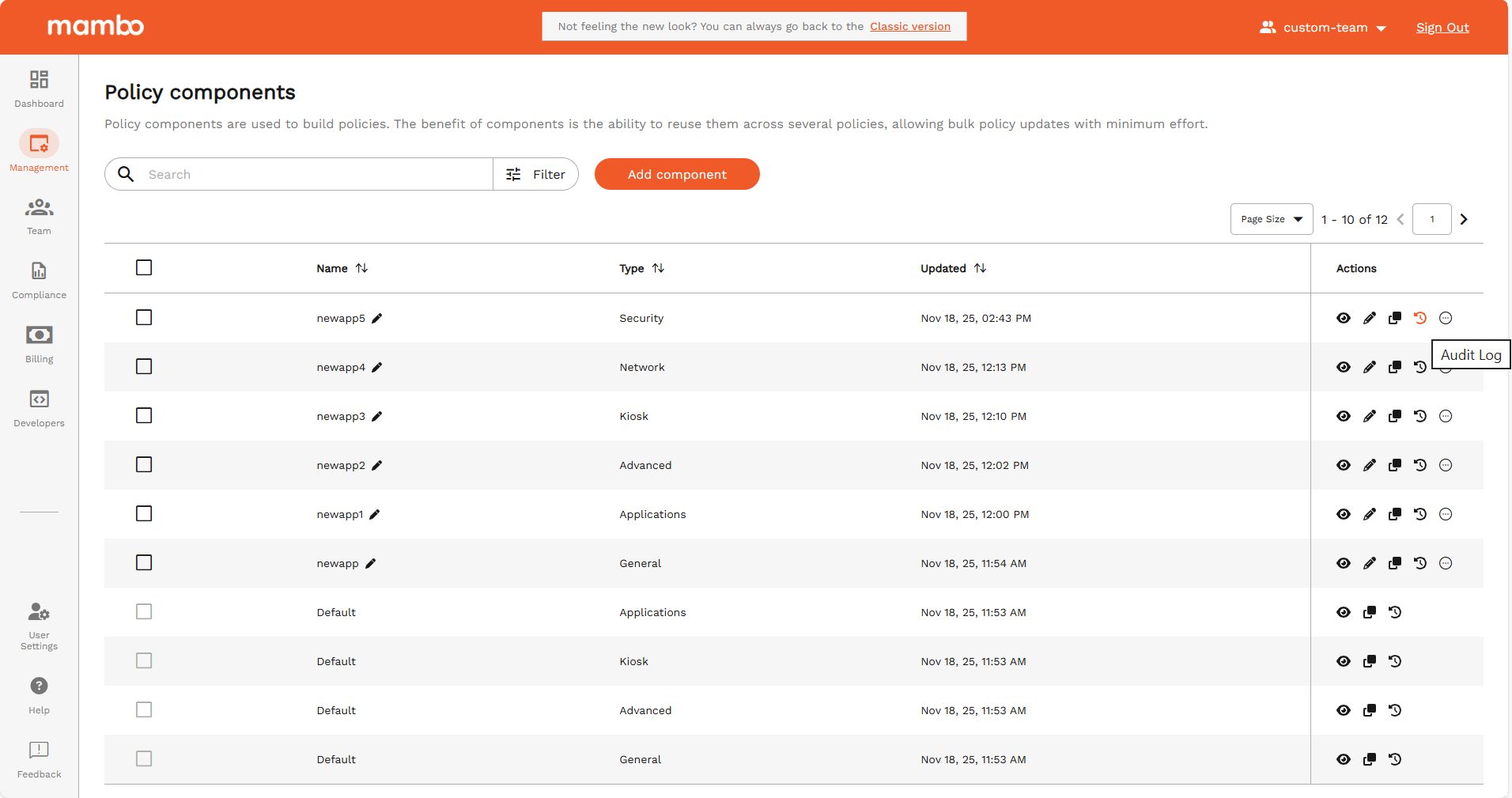
Audit Log Interface
Upon selecting Audit Log, a pop-up window will appear displaying a table with the following columns:
- Name: The name of the user who performed the action. (Names in braces indicate an imposter name.)
- Date: The date and time when the action was performed.
- Action: Indicates whether the data was added or changed.
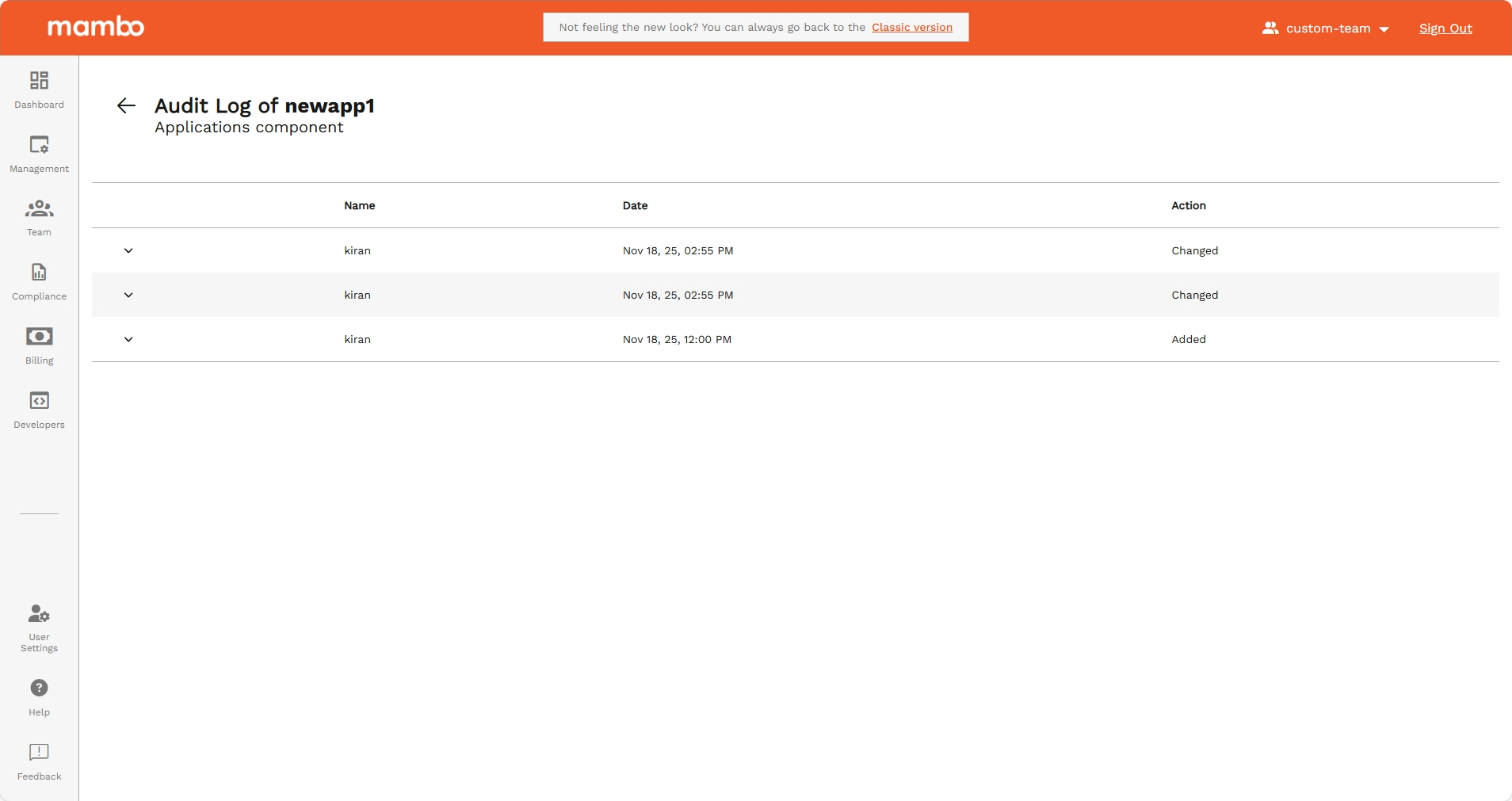
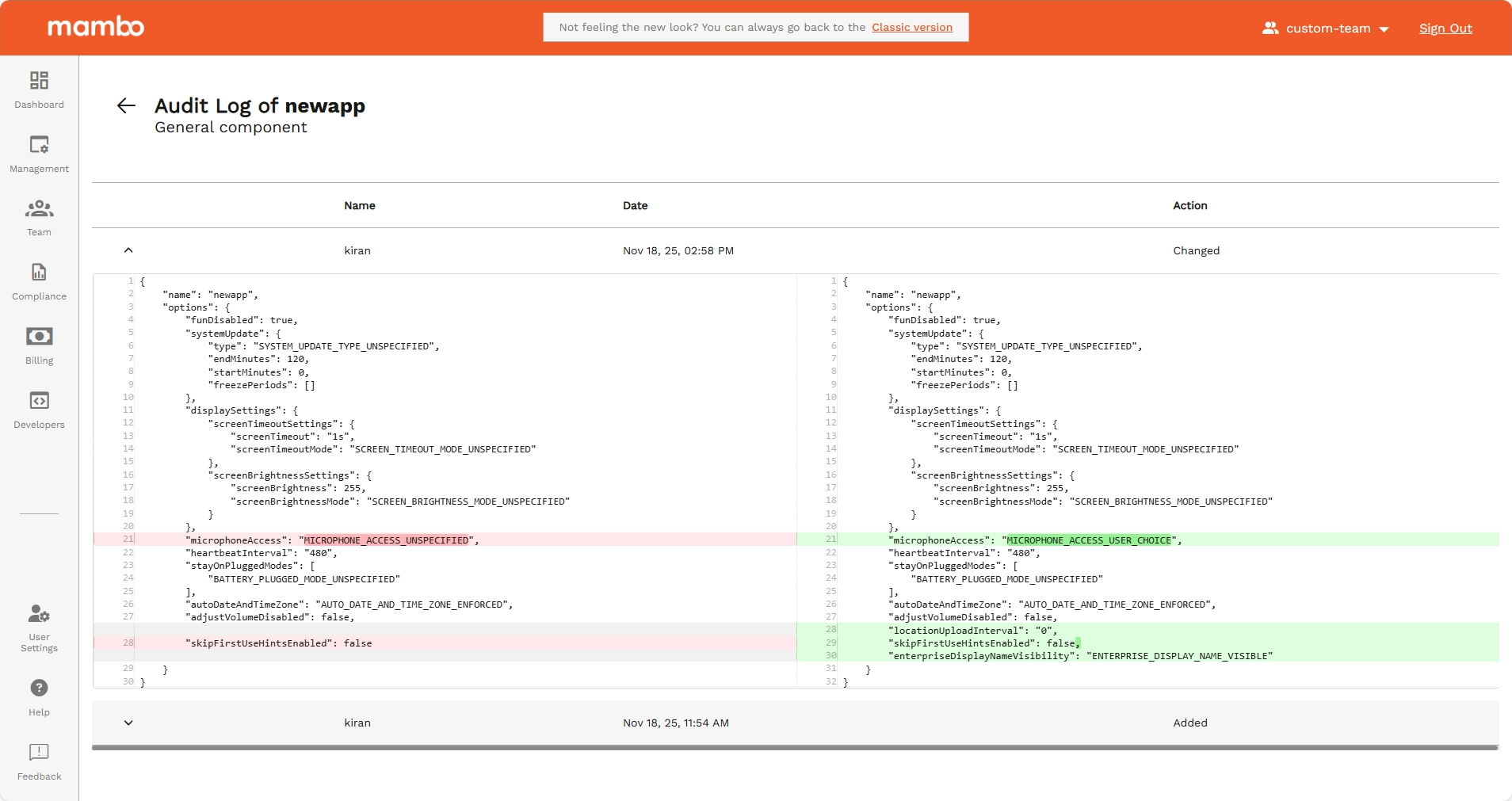
Detailed View
Each row in the table includes an accordion. Clicking a row will expand it to reveal detailed information about the changes, similar to a diff checker:
- Differences: Highlights the changes made, showing the previous and current states.
Benefits
- Transparency: Provides a clear and detailed record of all actions taken within the Policy Component.
- Accountability: Identifies the users responsible for changes, enhancing accountability.
- Troubleshooting: Facilitates easier troubleshooting by showing precise changes and timestamps.
FAQs
Q: How often are audit logs updated?
A: Audit logs are updated in real-time whenever a policy component is created or modified.
Q: Can I restore a previous version of a policy component from the audit log?
A: The audit log provides information about changes but does not support restoring previous versions. You can manually recreate a previous version based on the log details.
Q: Is there a limit to how long audit logs are retained?
A: Retention policies can be configured in the EMM console. By default, logs are retained for one year.