Device Details
The Device Details page provides a centralized view of all information and actions related to a managed device. Use this page to monitor device status, manage applications, track location, and perform administrative tasks.
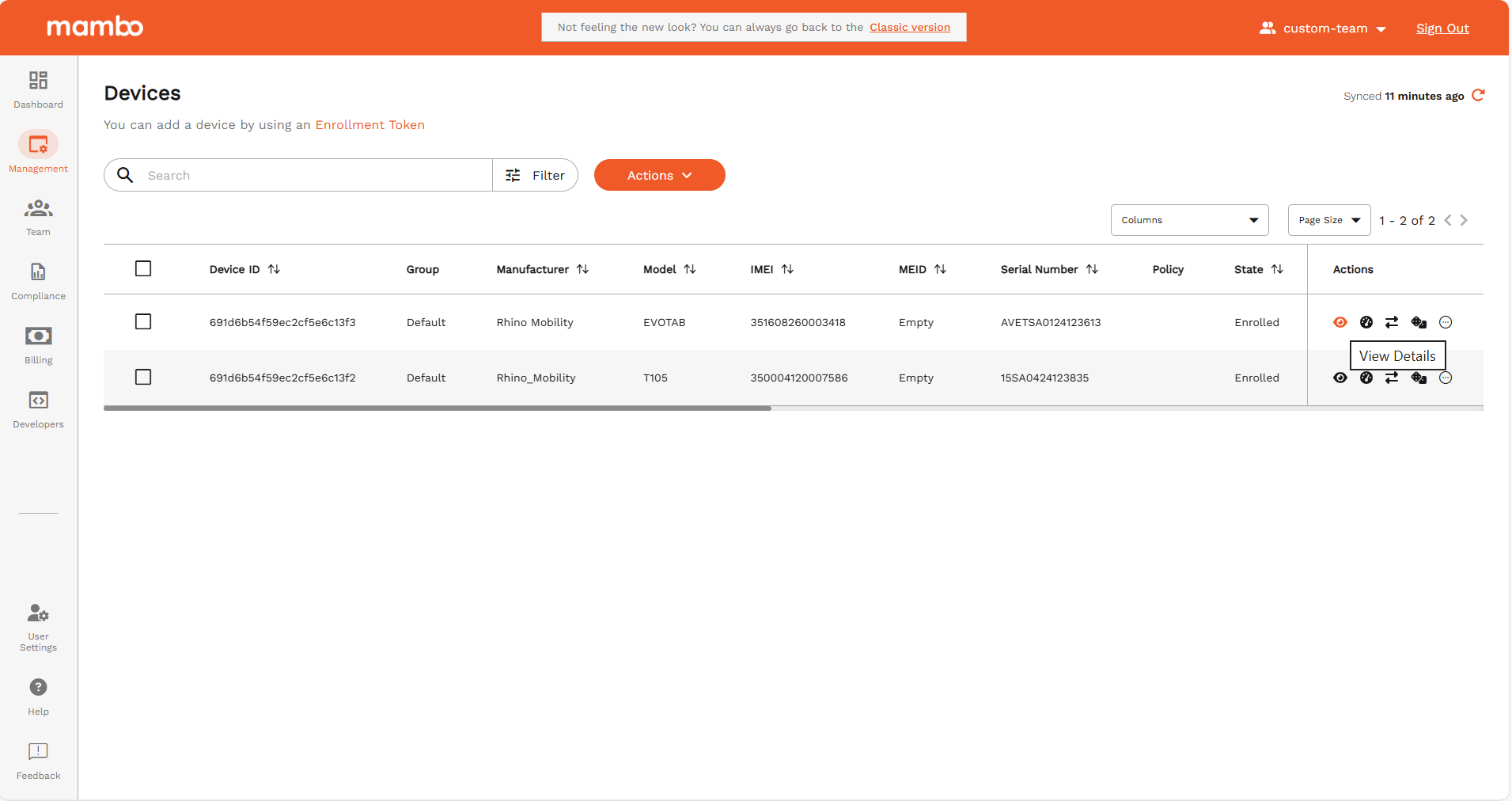
Accessing Device Details
- Log in to the Mambo EMM console.
- Go to Management > Devices.
- Click on a device from the list to open its Device Details page.
Device Tabs
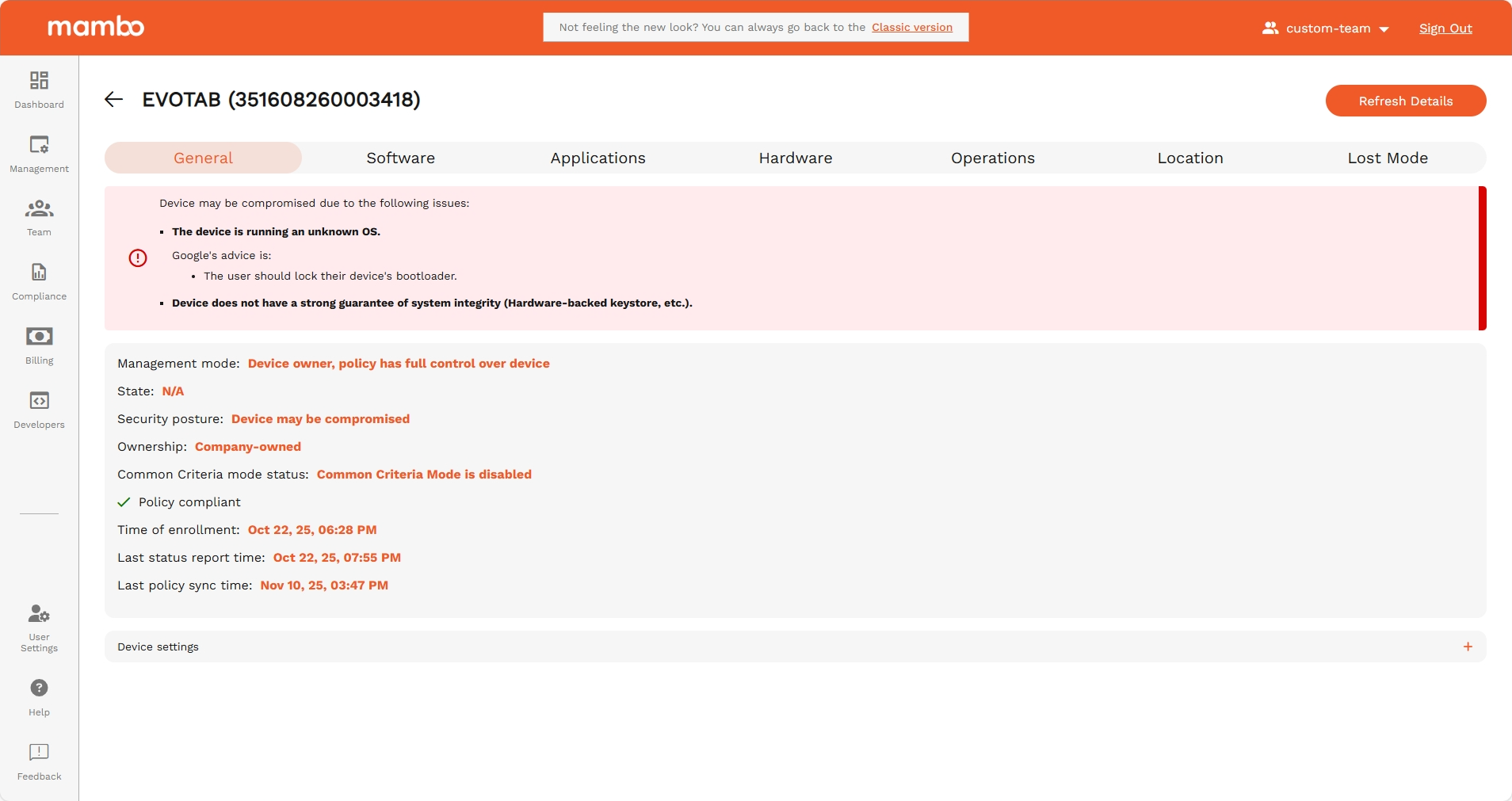
General
- Device Status: Current state (e.g., active, inactive, lost).
- Security Posture: Device risk level and security advice.
- Ownership: Company-owned or personally owned (BYOD).
- Policy Compliance: Compliance status with assigned policies.
- Enrollment & Sync Times: Enrollment date, last status report, and policy sync times.
- Device Settings: Security settings like encryption, unknown sources, and development settings.
Software
- OS Information: Android version, build number, security patch level, and kernel version.
- Update Status: Available system updates and their status.
- Language & Build Info: Primary language and build signature.
Applications
- Installed Apps: List of all applications with name, package, version, and state.
- System Apps Toggle: Show or hide system applications.
- App Actions:
- Clear Data: Remove app data for selected applications.
- Managed Config: Configure managed settings for supported applications.
Hardware
- Hardware Info: Manufacturer, model, serial number, and baseband version.
- Battery Info: Health, voltage, temperature, charge cycles, and capacity.
- Network Info: IMEI, MEID, Wi-Fi MAC address, carrier, signal strength, and active APN.
- Memory & Storage: RAM, internal, and external storage usage with historical charts.
- Power Events: Power management and memory event logs.
Operations
- Command History: Log of all operations/commands sent to the device, including type, execution time, expiry, and status.
Location
- Device Location: Request and view the device’s current or last known location on a map.
- Location History: Select from previous location records.
- Locate Device: Send a request to fetch the device’s current location (if supported by the plan and device type).
Lost Mode
- Lost Device Details: Last known battery level, failed unlock attempts, and last known location.
- Recovery Actions: Use the map to track the device’s last reported location.
Common Actions
Refresh Device Details
- Click the Refresh button in the page header to fetch the latest device information.
Locate Device
- In the Location tab, click Locate Device to request the device’s current location.
- If the device does not respond within a few minutes, you will be notified.
Permissions & Restrictions
- Location Tracking: Only available for company-owned devices and requires the Location Request feature in your plan.
- Lost Mode: Only visible if the device is marked as lost or pending recovery.
Troubleshooting
- No Data: If a tab shows no data, ensure the device is online and has synced recently.
- Location Issues: If the device location is not updating, check if the device has location services enabled and is connected to the internet.
- Policy Compliance: If the device is non-compliant, review the Non-Compliance Details section for specific issues.